
How To Verify Your Google Business Profile (All Methods)


Verified. Now Make It Work.
Turn high-intent local searches into customers with Google Ads
Drive Local Traffic
Quick Summary
Verification is the step that unlocks your Google Business Profile (GBP). Until it’s done, your listing has limited visibility on Google Search and Maps, and you can’t edit your hours, add photos, or respond to reviews. If you’re trying to verify your business on Google for the first time, or you’re stuck after a rejection, this guide covers every verification method available in 2026 and what to do when things go wrong.
What Google Business Profile Verification Is (and Why It Matters)
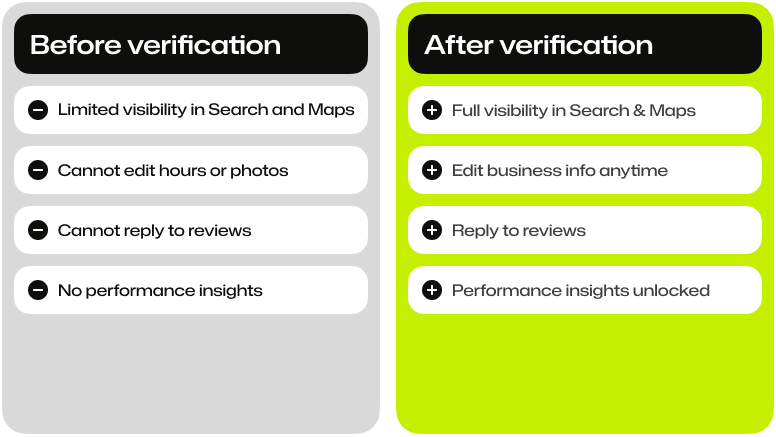
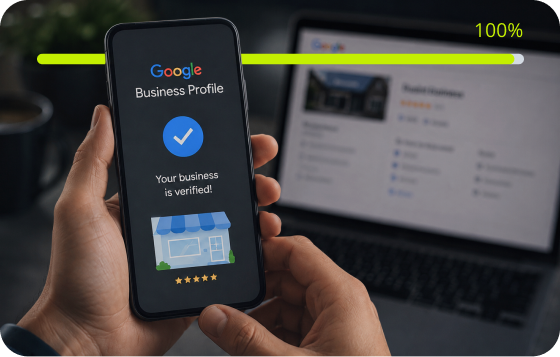
Verification tells Google that you’re the authorised manager of a real business at a real location. After you are verified, your profile becomes fully editable and eligible to appear in local search results and Google Maps.
A few things worth clarifying upfront:
Verification vs suspension are different problems. Verification is something you complete when you create or claim a profile. Suspension happens when Google decides a verified profile violates its guidelines. If your profile was suspended, the steps in this guide won’t resolve that. You’ll need to go through Google’s reinstatement process separately.
What changes after verification:
- Your profile becomes visible in Search and Maps
- You can edit business information and post updates
- You can respond to customer reviews
- You get access to performance insights and analytics
How Verification Works
Start at business.google.com. After you’ve created or claimed your profile, you’ll see a “Get verified” prompt. Click it to begin the Google Business Profile Verification process.
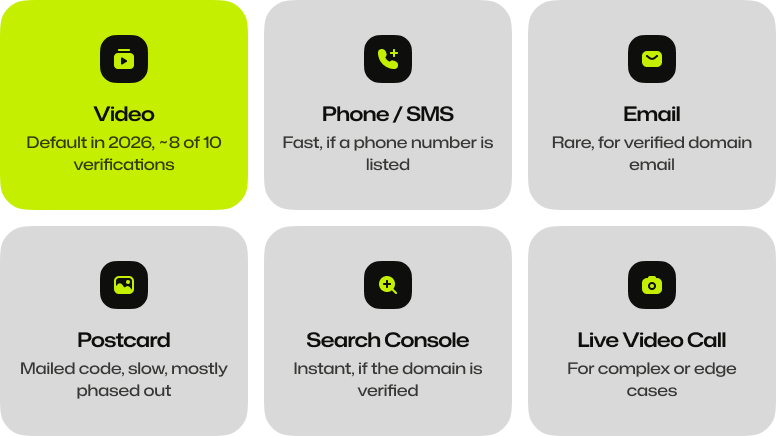
Google automatically determines which verification methods are available to you based on your eligibility. You can’t choose your preferred method upfront. The options shown depend on your business type and location, and whether you’ve made recent changes to your profile.
Before you do anything else, you’ll be asked to classify your business. Getting it wrong can complicate your verification or, in some cases, trigger a suspension. The options are:
- A business with a physical location that customers visit (a shop or office)
- A business with a physical location that also travels to customers (a plumber or photographer)
- A service-area business that travels to customers with no staffed public location (a personal trainer or cleaner)
- An unstaffed facility where transactions take place
Choose the one that accurately represents how your business actually operates.
Verification Methods: Step by Step
Video Verification (Most Common)
Video is now the default verification method for most businesses in 2026. Industry data shows that it’s required in around 8 out of 10 new verifications. Google uses it to confirm that your business is physically real and operating at the listed address.
The video must be recorded in a single continuous take on a mobile device. directly within the verification flow. Offline uploads don’t work. Editing and cuts aren’t allowed.
What to film:
- Start outside. Show the street sign and building number so reviewers can match your location to Google Maps imagery.
- Show your exterior signage displaying your business name. It must match the name on your profile exactly. Temporary banners or printed paper signs are often rejected. Use permanent signage only.
- Walk to the entrance and show yourself entering the building.
- Inside, show the workspace and operational evidence such as equipment and branded materials.
- If you’re a service-area business without a public storefront, show your branded vehicle or work equipment instead.
Keep GPS enabled on your device while filming. Google uses location data from the video to confirm you’re at the right address.
Common rejection reasons and fixes:
| Rejection Reason | Fix |
|---|---|
| Signage doesn’t match the profile name | Update signage or adjust profile name to match exactly |
| The video was edited or had cuts | Re-record as a single continuous take |
| The GPS was off during recording | Enable location services before recording |
| Location couldn’t be confirmed | Start outside and show the street sign clearly before entering |
| Poor lighting or shaky footage | Record in daylight and move slowly |
| Temporary or printed signage | Use permanent exterior signage only |
| Profile name/address mismatch | Make sure profile details are accurate before recording |
After submitting, the video review typically takes 3 to 5 business days. If rejected, you’ll see a “Review issues” notification. Select it and follow the instructions to re-record the clip.
Note: Google limits the number of video attempts. After several failed submissions, you may see a “No More Ways to Verify” message. At that point, the verification is no longer available. You’ll need to contact Google support directly.
Phone Verification
If available, Google will send a verification code via automated call or SMS to the phone number listed on your profile.
Steps:
- In your Business profile, select “Get verified” then “Phone” or “SMS”
- Make sure you can answer your business phone or receive texts at that number
- Enter the code when prompted
Note: IVR (Interactive Voice Response) systems won’t receive the code. You need a direct line. This method is generally available to businesses with a consistent existing online presence.
Email Verification
If available, Google sends a verification code to a domain-based email address connected to your profile. This means an email using your business domain, not a Gmail or a personal address.
Steps:
- Select “Get verified” then “Email”
- Check the inbox for the address shown
- Enter the code within the time limit
The email itself arrives quickly, but Google may still take up to a week for manual review after you enter the code. This option appears for profiles that have been active but unclaimed, or for businesses with a strong existing digital footprint.
Postcard Verification
Google mails a postcard with a 5-digit code to your listed business address. This method is still available in some cases but is less common than in previous years, particularly for service-area businesses.
Steps:
- Select “Get verified” then “Postcard”
- Confirm your mailing address is correct
- Request code and wait. Most postcards arrive within 14 days.
- Enter the code in your Business Profile before it expires (codes expire after 30 days)
Note: While waiting for your postcard:
- Don’t edit your business name or address. Any changes will invalidate the code.
- Don’t request a new code. This cancels the one in the mail.
Google Search Console (Instant Verification)
If your business website is already verified in Google Search Console using the same Google account, you may qualify for instant verification when claiming your profile. No code required.
This isn’t available to all businesses. If it applies to you, it will appear as an option when you begin the verification process.
Live Video Call
In some cases, Google may offer a live video call option where a Google representative asks you to show your location and business operations in real time. This is less common and typically appears as an alternative after other methods have been attempted.
Troubleshooting: “I Can’t Verify My Google Business Profile”
Not Receiving a Code
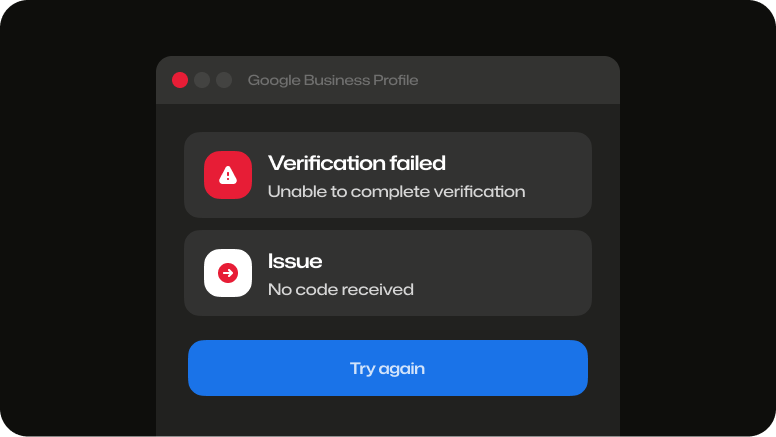
- For the postcard: check that your address is correct and allow the full 14-day window. Don’t request a second one until the first one expires.
- For phone: confirm the number listed is a direct line and not a forwarding service.
- For email: check spam folders and make sure the email address shown matches a domain you control.
Code Expired or Not Working
Verification codes expire after 30 days for the postcard. Re-request after the original has expired. Don’t request multiple codes at the same time.
Profile Details Don’t Match
One of the most common reasons for Google Business Profile verification failing is inconsistency between your profile and real-world evidence. Your business name on the profile must match your physical signage exactly. Your address must match official documents as well.
Before recording a video or requesting a code, review your profile and correct any discrepancies.
Service-Area and Home-Based Businesses
If you operate from home and have hidden your address, or if you’re a service-area business with no physical storefront, video verification is almost always the only Google Business Profile verification method available to you. Film from your home office or base of operations, showing business equipment and branded materials. Don’t show personal areas of your home that aren’t relevant to your business.
“No More Ways to Verify”
This message appears after multiple failed verification attempts. At this point, the self-service is now closed. You’ll need to contact Google Business Profile support directly through the help menu in your profile. Have the following ready when you do:
- Your business name and address as listed on the profile
- Screenshots of the rejection messages you received
- Supporting documents, such as a business licence or utility bill showing your business name and address
- The email address on your Google account
FAQs
How long does Google Business Profile verification take?

Why am I being asked to verify again?

What happens if I don’t verify the Google Business Profile?
Why can’t I see the verification method I want?